Sign-up and Sign-in
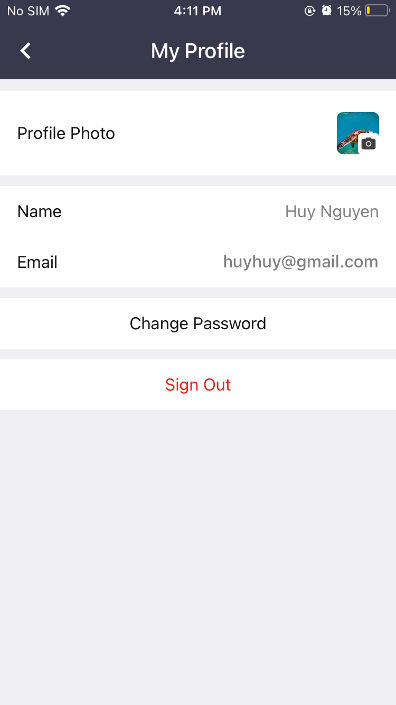
Matrx can be signed up and signed in with either email address or phone number from mobile clients and with email address only from desktop clients.
Windows and macOS
Sign up with Email Address
- Click on the "Sign Up" button, and a web page will be opened on your browser for sign-up. Enter your email address, and then click on "Sign Up".
- Enter the 6-digit verification code that you've received in your email inbox and then click on "Next". You may need to check your spam folder if you can't find the verification code in your inbox.
3. Enter your name, follow the password requirement to set password for your Matrx account, and click on "Next". Sign-up is completed.
Sign in with Email Address
Click on the "Sign In" button, enter your registered email address and password, and then click on "Sign In".
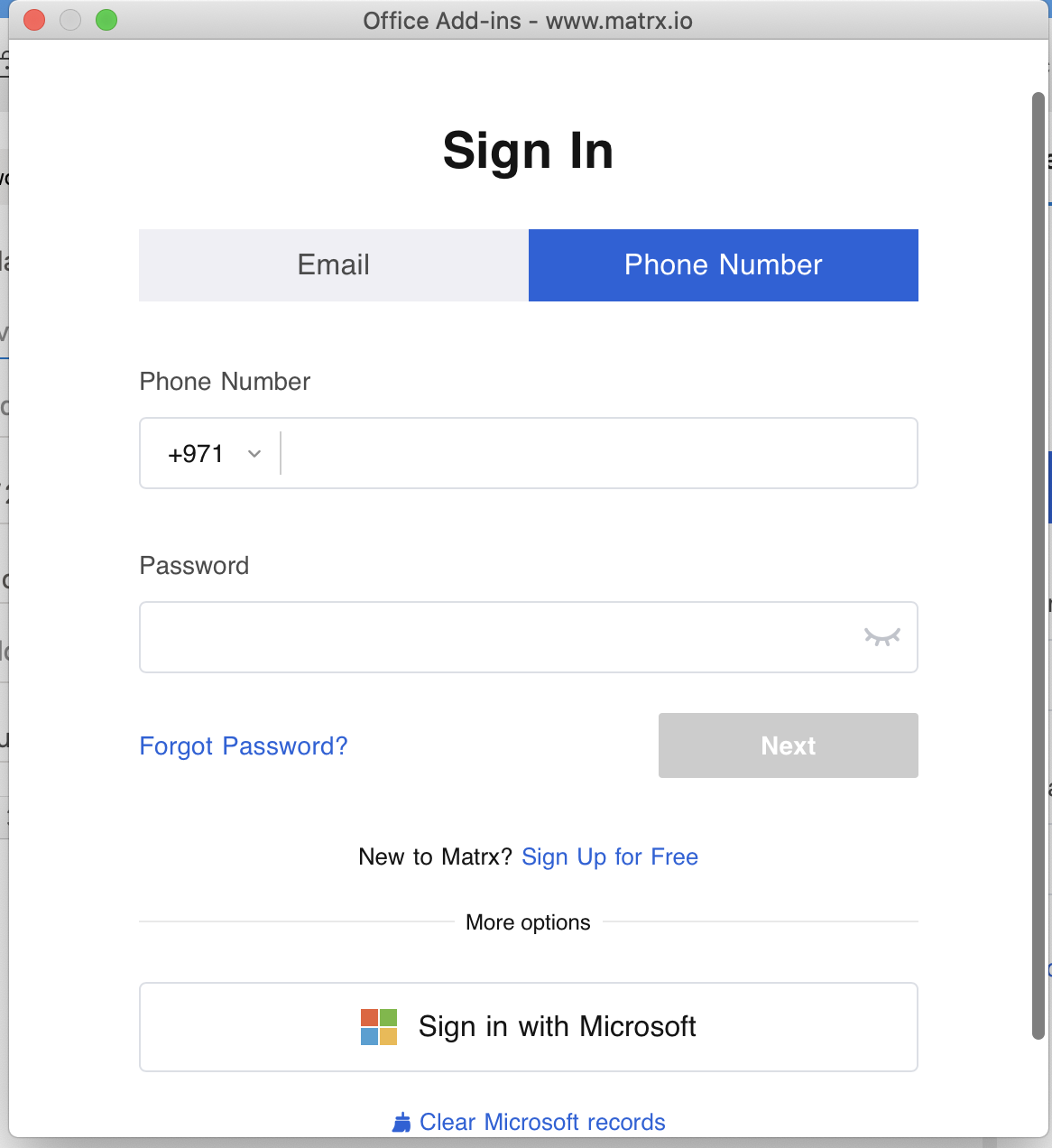
Sign in with Phone Number
There are 2 options for signing in with phone number. You can either enter password or get and enter a verification code to sign in by clicking on "Use Verification Code".
Android and iOS
Sign up with Email Address
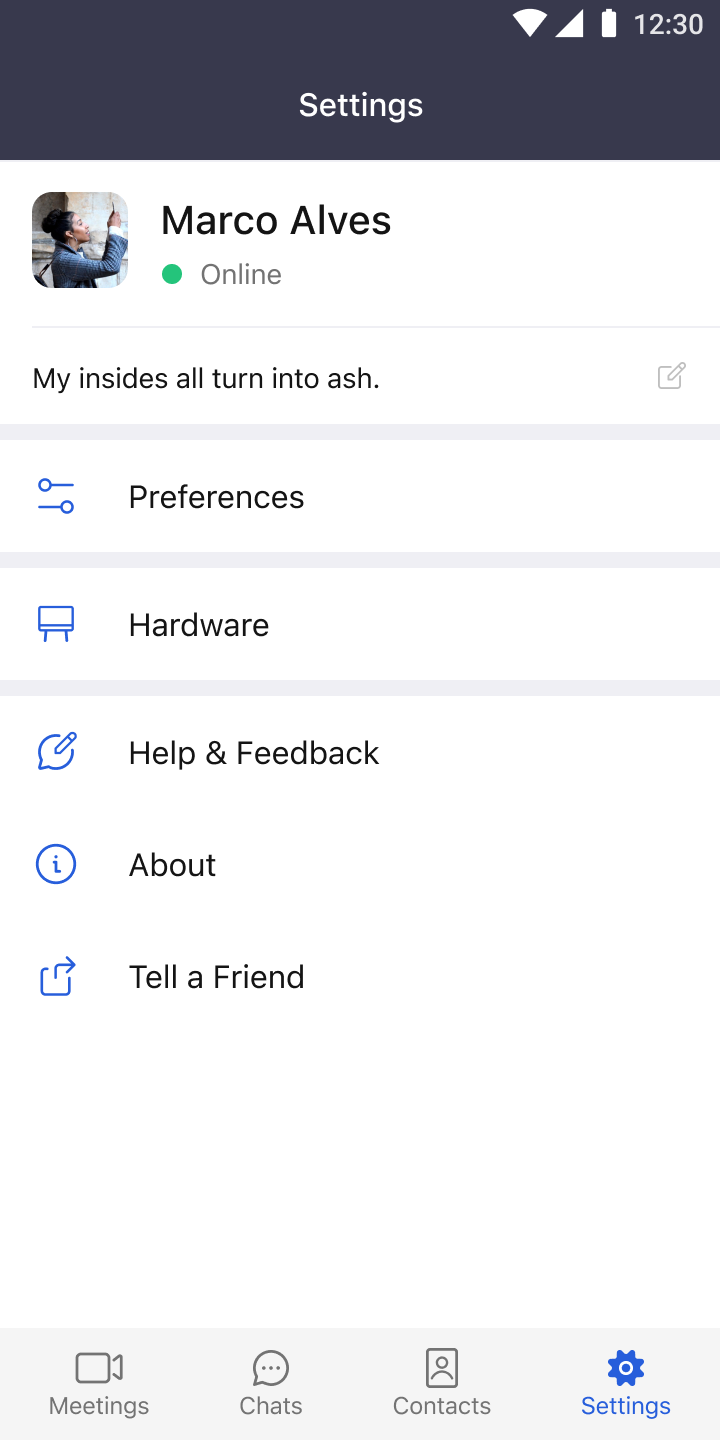
- Tap the "Sign Up" button, enter your email address, and then tap "Next".
-
Enter the 6-digit verification code that you've received in your email inbox and then tap "Next". You may need to check your spam folder if you can't find the verification code in your inbox.
-
Enter your name and then tap "Next".
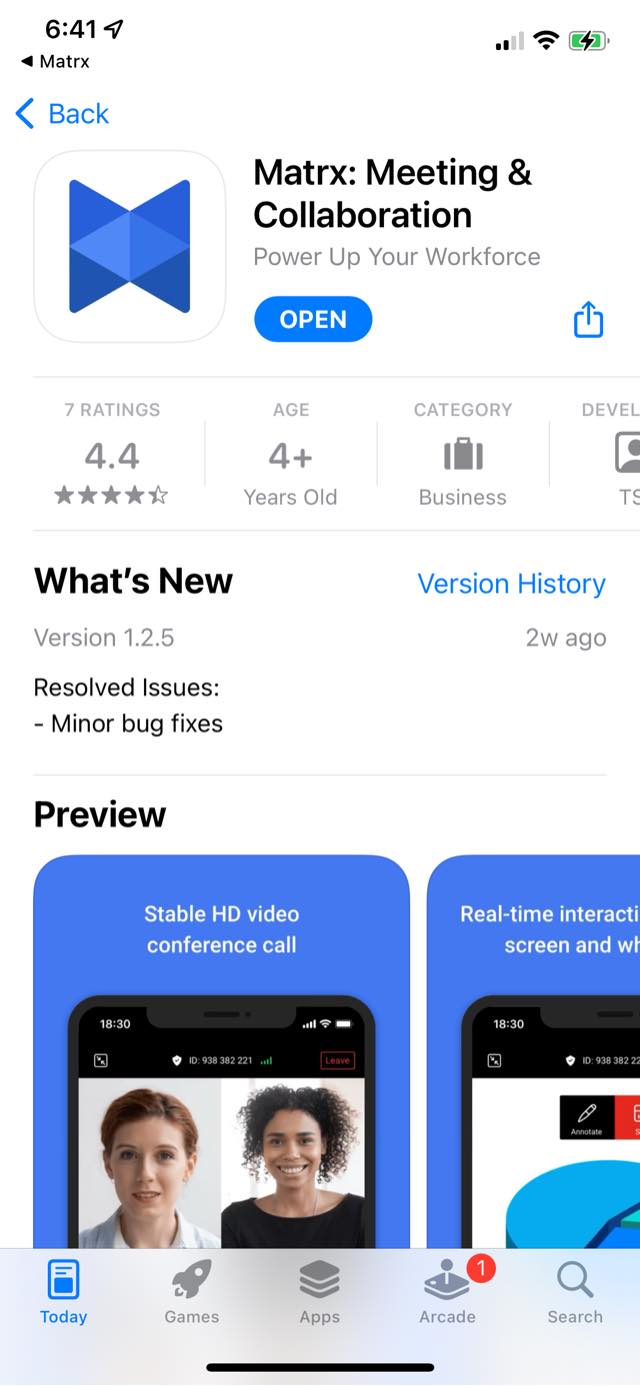
- Follow the password requirement to set password for your Matrx account and tap "Done". Sign-up is completed.
Sign up with Phone Number
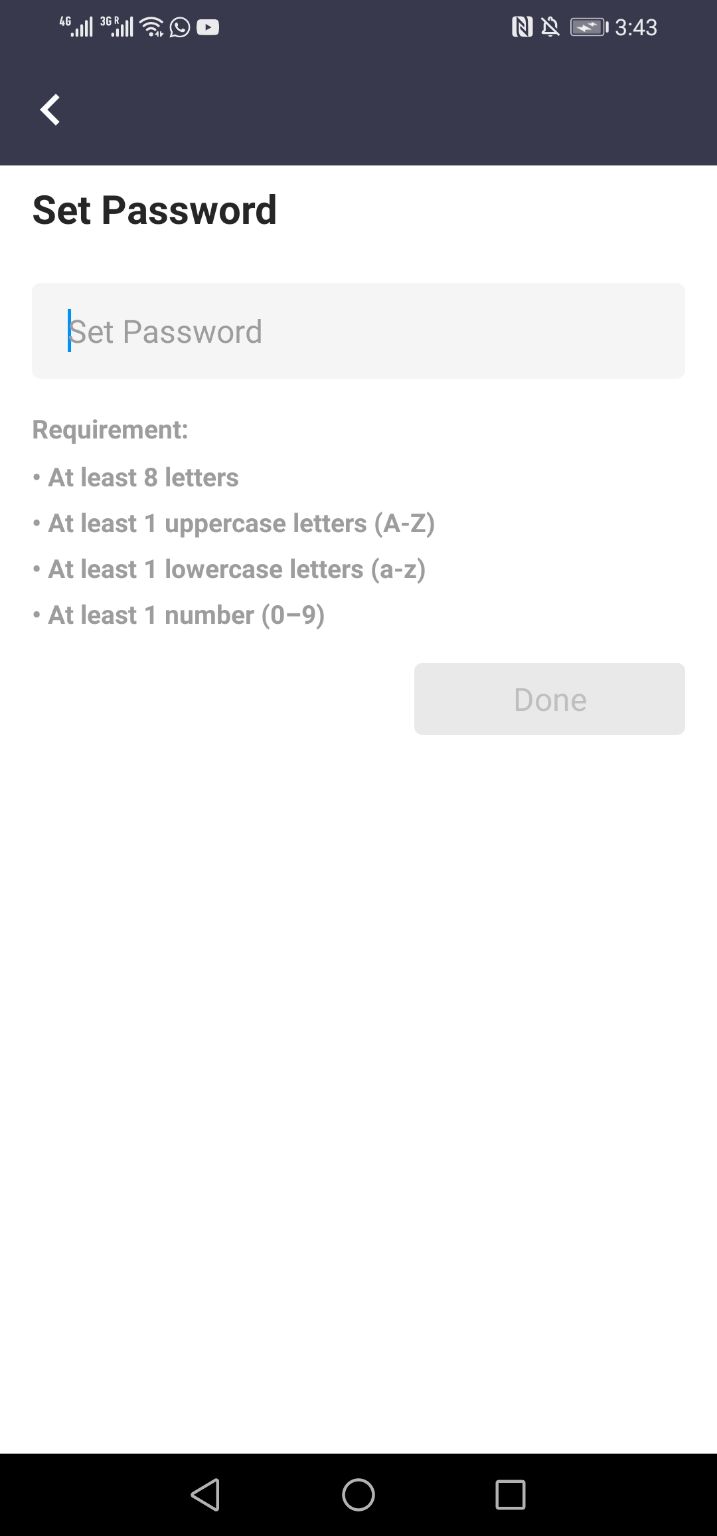
- Tap the "Sign Up" button, tap "Phone Number", enter your phone number, and then tap "Next".
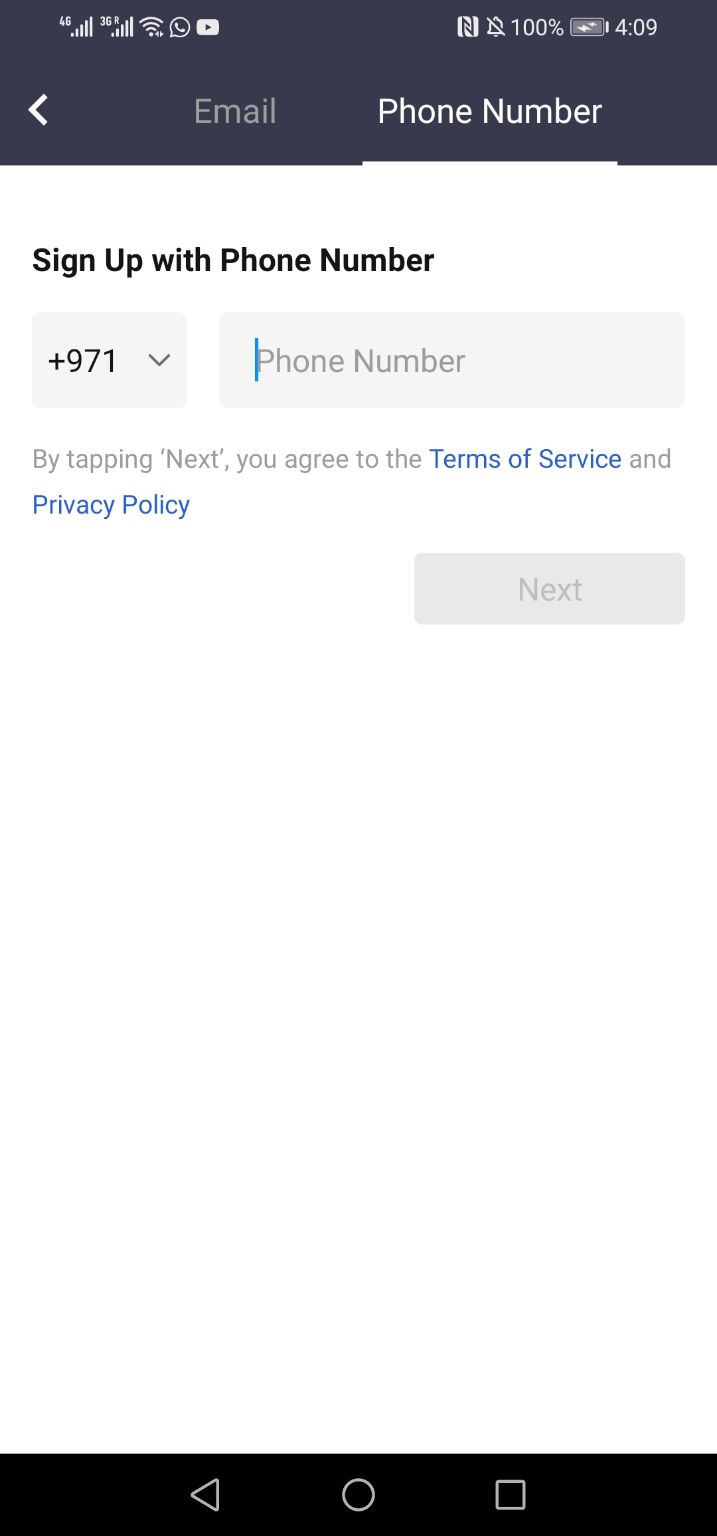
2. Enter the 6-digit verification code that you've received on your mobile via SMS.
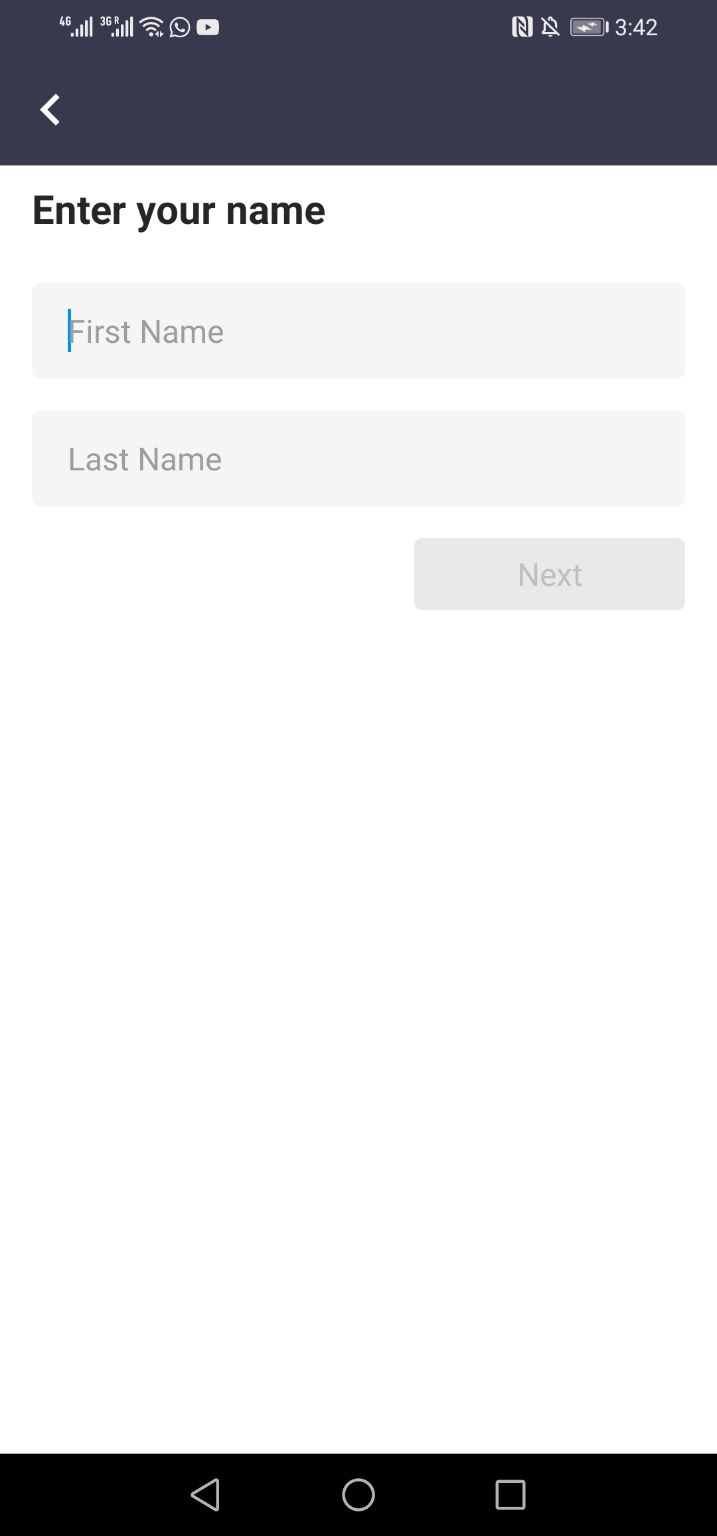
- Enter your name and then tap "Next".
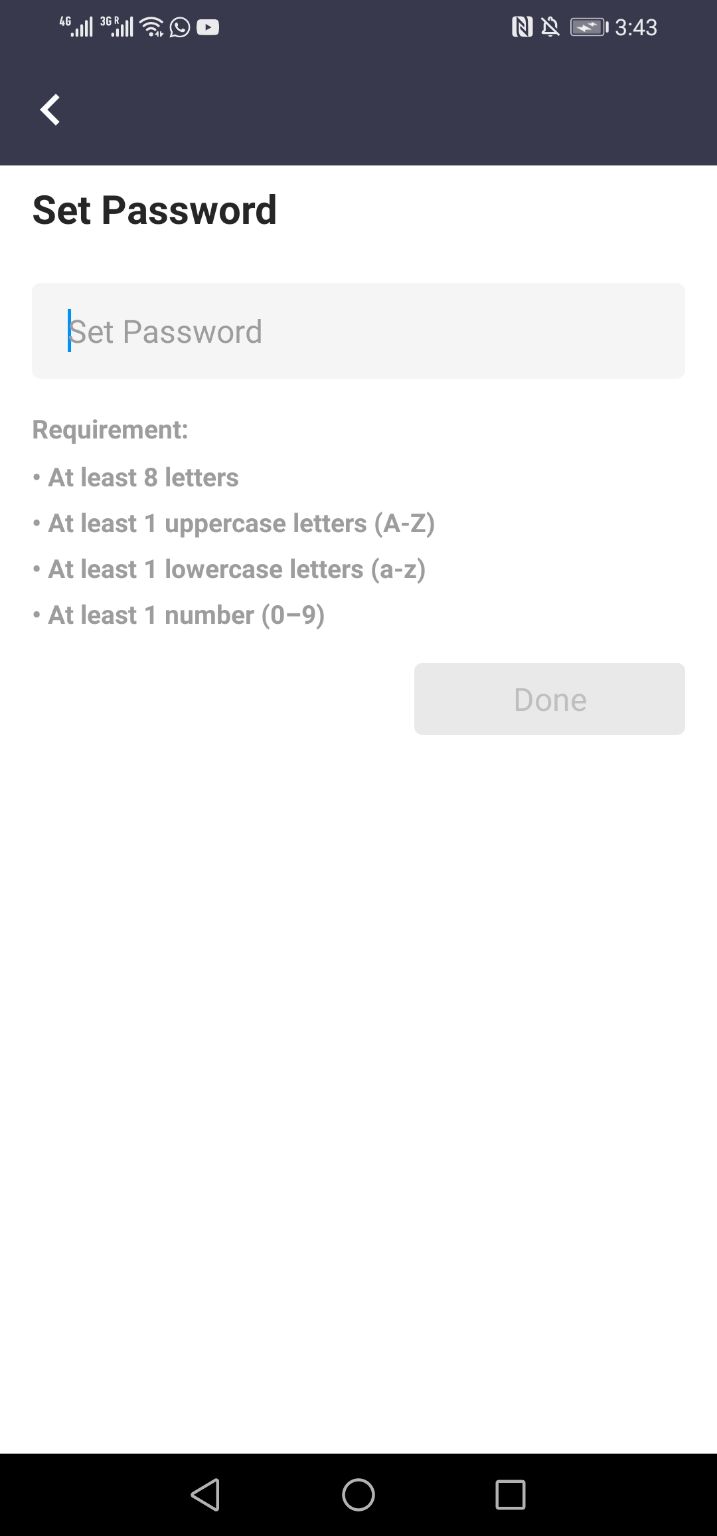
- Follow the password requirement to set password for your Matrx account and tap "Done". Sign-up is completed.
Sign in with Email Address
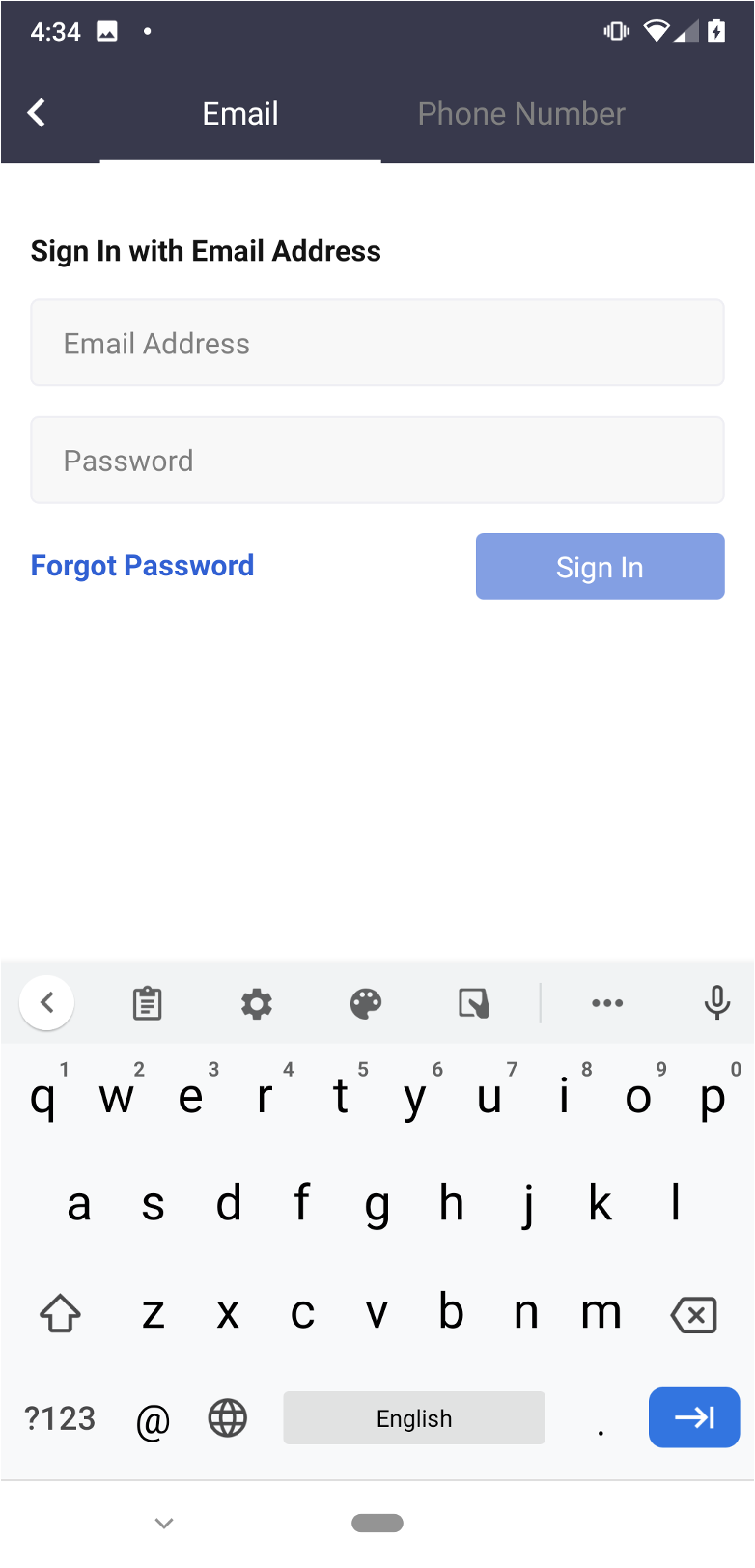
Tap the "Sign In" button, enter your registered email address and password, and then tap "Sign In".
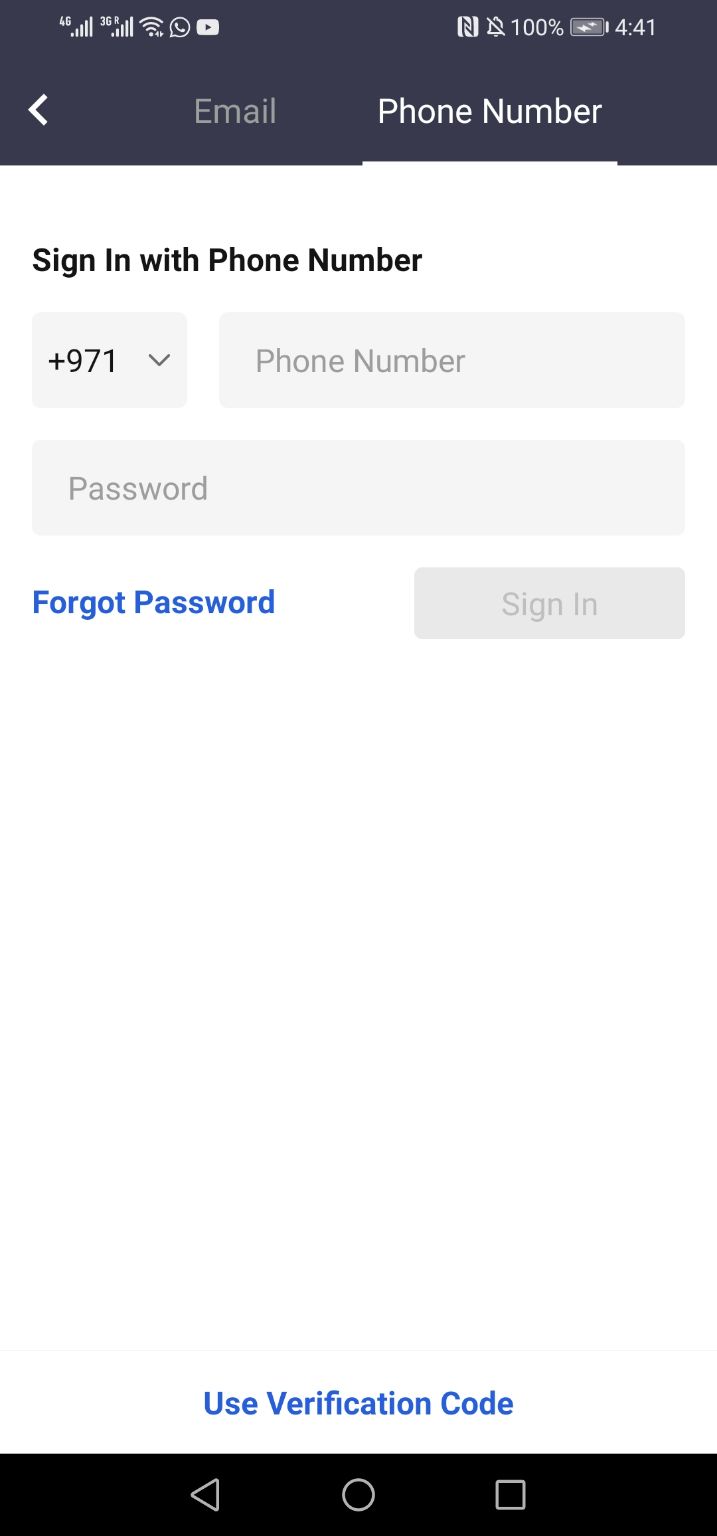
Sign in with Phone Number
There are 2 options for signing in with phone number. You can either enter password or get and enter a verification code to sign in by tapping "Use Verification Code".
Outlook add-in
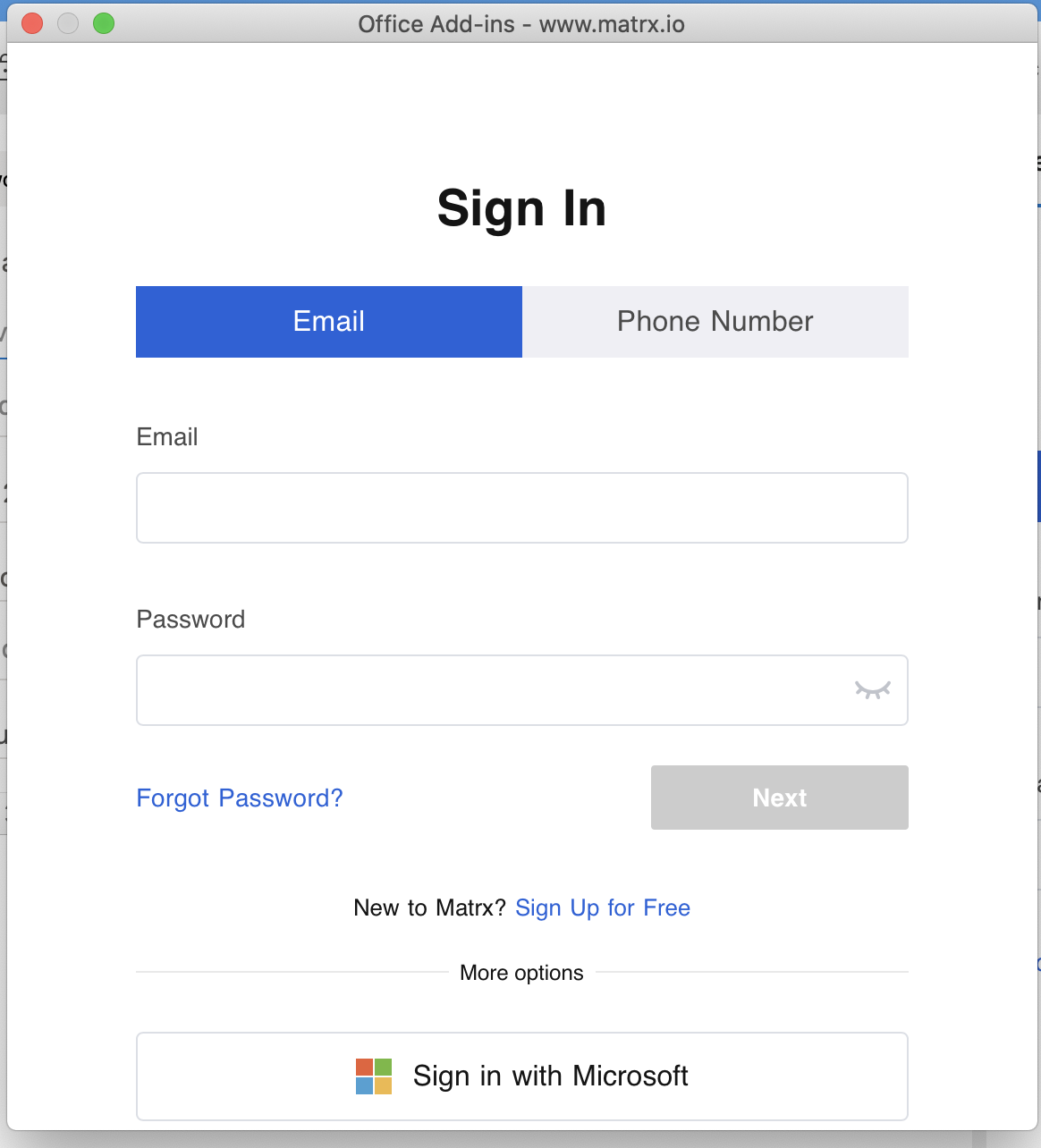
Sign in with Email Address
Click on the "Sign In" button, enter your registered email address and password, and then click on "Sign In".
Sign in with Phone Number
There are 2 options for signing in with phone number. You can either enter password or get and enter a verification code to sign in by clicking on "Use Verification Code".